photo try-on
take or upload one full-length photo and see yourself wearing the product.
vton shows shoppers themselves wearing your products, with the exact fabric, colour and design they picked. one photo, a live mirror or a short video. in your store, on your website and in your app.
no app to install · the shopper agrees first · photos deleted when the visit endsshoppers pick the way that suits them, and can try the others afterwards.
take or upload one full-length photo and see yourself wearing the product.
stand in front of the screen and see yourself wearing it, live, like a magic mirror.
record 5 seconds of yourself and get your own video back, now wearing the product.
45 seconds of the live mirror with real products. every look follows the shopper as they move.
every look is a real recording of the live mirror. sound on.
book a demoon the store screen, your website or your app, the shopper taps try it on. the exact design they built comes along.
the shopper agrees first, then picks photo, live mirror or video. they can use the screen's camera, scan a QR code with their own phone, or choose a photo from their gallery.
they see themselves wearing it, compare it with their own photo, flip between looks, and add the exact design to the cart.
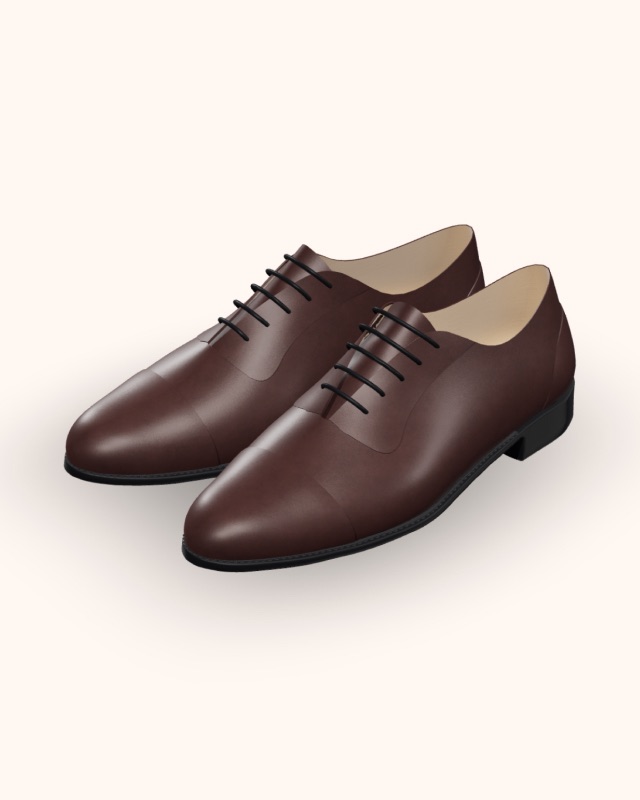
from shirts and suits to jodhpuris, thobes, shoes and turbans. watches, glasses, jewellery and bags are the newest.
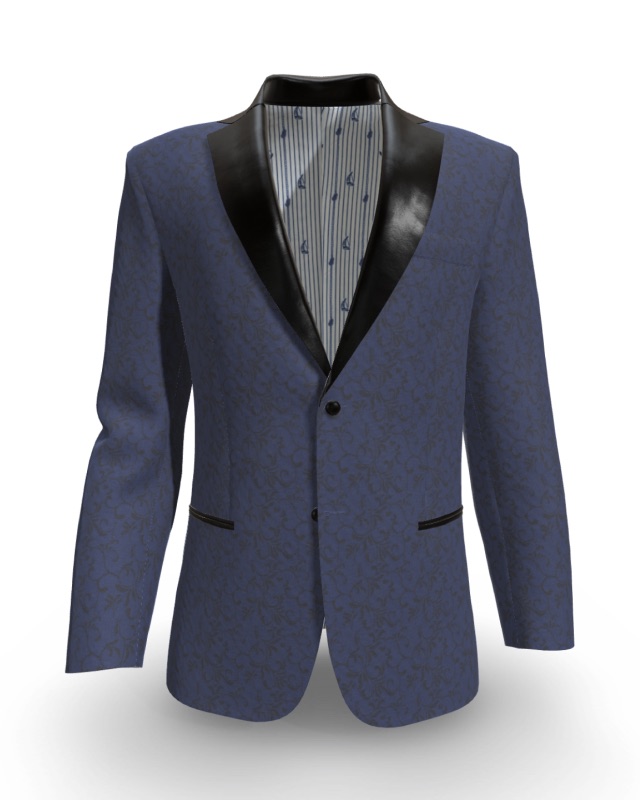
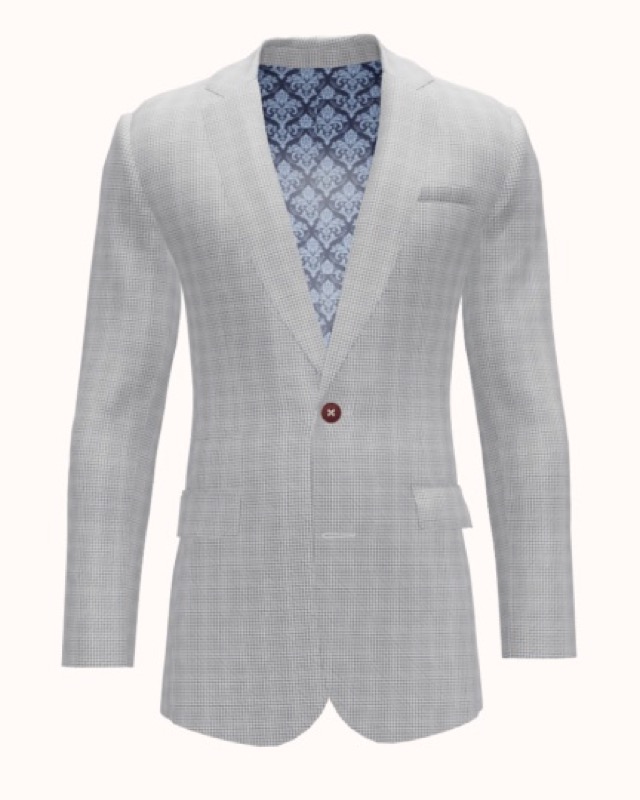
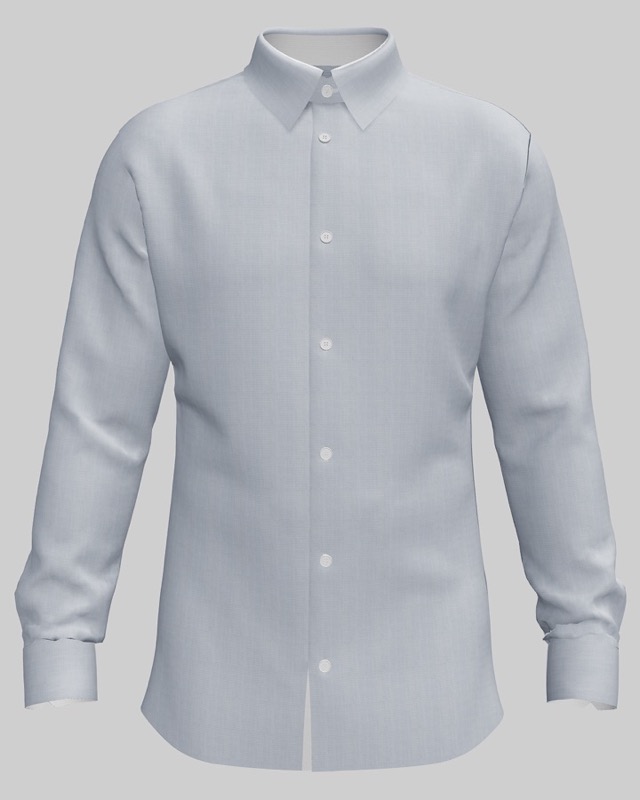
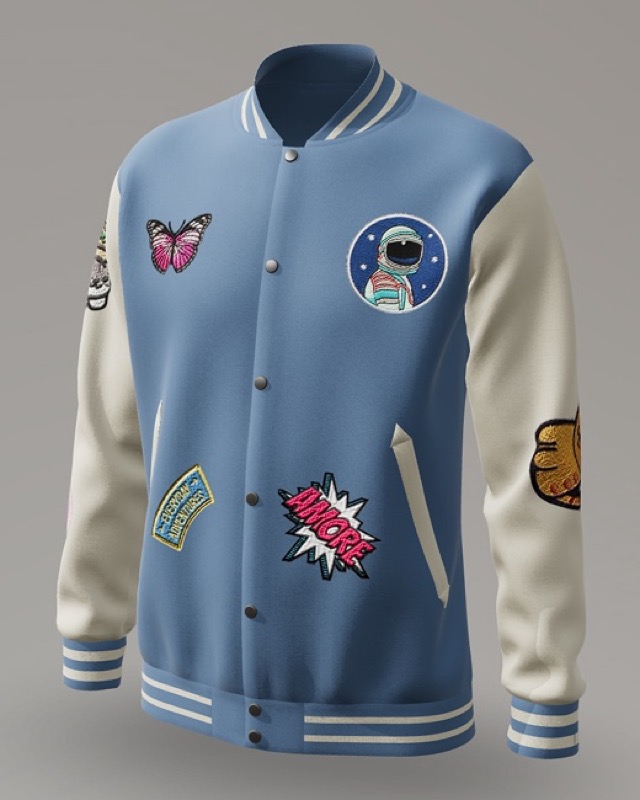
pair vton with the thob 3D customizer. the shopper picks the fabric, lining, buttons and collar, and the try-on shows that exact design on them. every choice stays with the order when they add it to the cart.
explore the 3D customizereverything a shopper needs to decide, from the first photo to the cart.
the store screen's camera, the shopper's own phone (scan a QR code, no app needed) or a photo from the gallery.
every look from the visit stays on screen, so shoppers can flip between designs and compare.
one tap switches between the try-on and the shopper’s own photo.
view the photo, the video or the live mirror on the whole screen.
save the try-on photo or video.
a plain white studio background by default, or keep the photo’s own background.
go straight from the try-on to the cart, with the exact design.
change the design, then come back to the earlier result in one tap.
a kiosk screen in the store, including android kiosks. shoppers can also send a photo from their phone with a QR code.
add a try it on button with our software kit (SDK). a few lines of code, with any framework.
built in: a try it on button on every product page.
import { createVton } from '@vton/sdk'const vton = createVton({ publishableKey, appOrigin, apiUrl })vton.open({ garment: productPicture, garmentType: 'suit', productName: 'Blue Leaves Tuxedo', onAddToCart: ({ context }) => addToCart(context),})the SDK opens the try-on screen over your page and tells you what the shopper did: added to cart, changed the design or closed. no other libraries needed.
the shopper’s photos and camera stay inside the vton screen. your page never sees them.shoppers trust what they understand. vton keeps it simple and asks first.
no. they use the store screen, or scan a QR code with their phone camera. there is nothing to install.
a clear, full-length photo in good light, with the whole body in view.
it is an AI preview of the exact product and design the shopper picked. colours and fit may differ slightly from the real product, and the screen says so.
they are used only for that try-on, never to train AI, and deleted when the visit ends. the shopper agrees before any photo is taken.
yes, with see it move. it turns the photo into a short video of the shopper turning around. because it starts from a front photo, the back is created by the AI.
yes. the try-on shows the exact design the customer built, such as the fabric, buttons and collar, and keeps those choices when they add it to the cart.
on a kiosk, through our try-on screen. on your website or app, through our software kit (SDK). if you use nimbus retail, it is already built in.
tell us about your store and we will set up a demo with your own products.